



Command Prompt proved to be one of the best tools for running basic commands that allow you to work with files and folders from Windows. However, the Command Prompt is much more powerful than just that. You can take things to the next level by learning and using a couple of advanced commands, including a range of handy network-related commands. Today, we’re going to learn how to use Command Prompt to check the internet connection, and your PC’s network connections, view information about network devices and watch the connections between your PC and other devices. So without further ado, let’s begin:
NOTE: The commands shared in this tutorial apply to Windows 11, Windows 10, and even older Microsoft operating systems such as Windows 7. Before going any further, if you don’t know how to open the Command Prompt, read: How to open Command Prompt (14 ways).
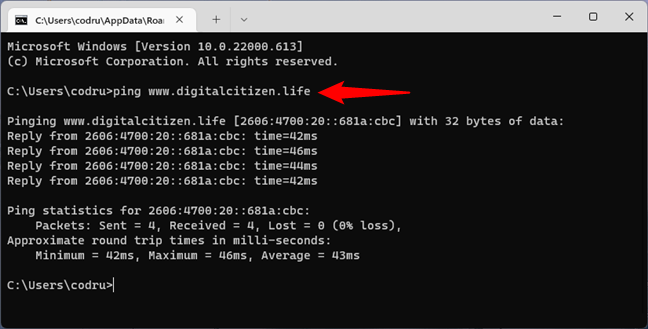
 How to ping a website in CMD
If the ping statistics don’t show any loss of packets, your internet connection is working as it should. However, if you get lost packets, either your internet connection is broken or the website you pinged is not online. To double-check your internet connection, ping at least another website, preferably one that’s always on, such as www.google.com.
How to ping a website in CMD
If the ping statistics don’t show any loss of packets, your internet connection is working as it should. However, if you get lost packets, either your internet connection is broken or the website you pinged is not online. To double-check your internet connection, ping at least another website, preferably one that’s always on, such as www.google.com.
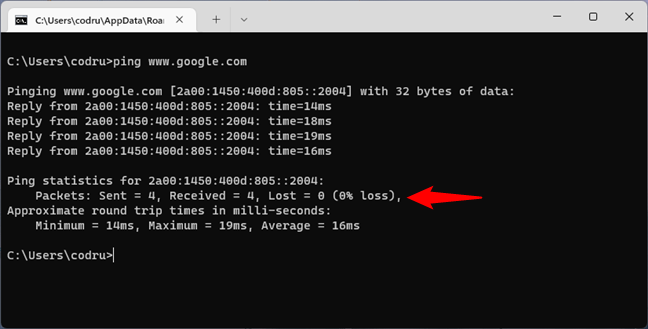 Double-check by pinging a popular website
The ping command also allows you to use the handy -t parameter, which enables you to ping the specified address forever until it's manually stopped. For instance, we typed
Double-check by pinging a popular website
The ping command also allows you to use the handy -t parameter, which enables you to ping the specified address forever until it's manually stopped. For instance, we typed
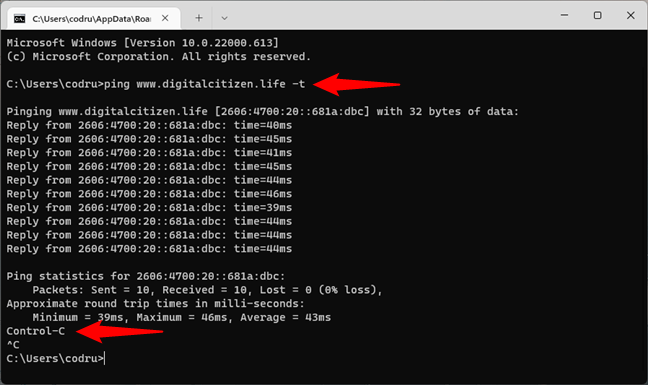
 How to run a continuous ping in a CMD prompt
After some time, we wanted to see some connection statistics, and we used the keyboard combination: CTRL + Break. This shows the averages of the ping commands run until then. However, it only works in the default Command Prompt. If you run Command Prompt inside the Windows Terminal, there’s a bug that makes CMD treat Ctrl + Break as Ctrl + C ending the command instead of pausing it. Obviously, if you want to terminate the command, use the keyboard combination:
How to run a continuous ping in a CMD prompt
After some time, we wanted to see some connection statistics, and we used the keyboard combination: CTRL + Break. This shows the averages of the ping commands run until then. However, it only works in the default Command Prompt. If you run Command Prompt inside the Windows Terminal, there’s a bug that makes CMD treat Ctrl + Break as Ctrl + C ending the command instead of pausing it. Obviously, if you want to terminate the command, use the keyboard combination:
 How to traceroute in CMD (tracert)
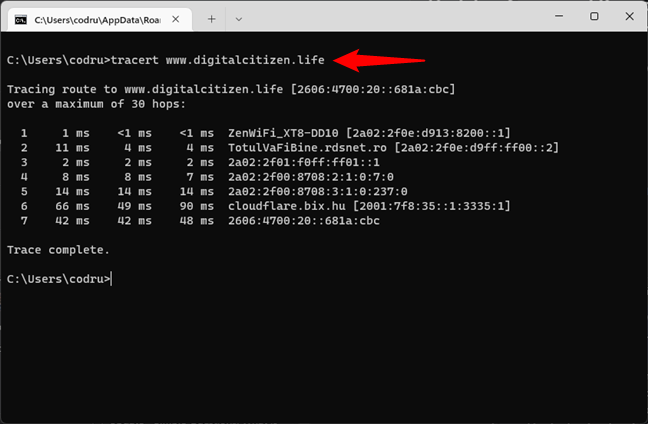
As you can see, for our PC to load digitalcitizen.life, data goes through the router (ZenWiFi_XT8-DD10 in the screenshot), then through a server from our internet provider, and then through other servers out in the world.
This information can help troubleshoot network and internet problems. For example, if the communication stops after packets leave your router and don’t make it to one of your ISP’s servers, the problem is somewhere in between your network and the internet provider. Or, if the packets are lost before the last hop, the website you’re trying to load is probably down.
How to traceroute in CMD (tracert)
As you can see, for our PC to load digitalcitizen.life, data goes through the router (ZenWiFi_XT8-DD10 in the screenshot), then through a server from our internet provider, and then through other servers out in the world.
This information can help troubleshoot network and internet problems. For example, if the communication stops after packets leave your router and don’t make it to one of your ISP’s servers, the problem is somewhere in between your network and the internet provider. Or, if the packets are lost before the last hop, the website you’re trying to load is probably down.
 Getting CMD NIC info (information about the Network Interface Card) by running ipconfig
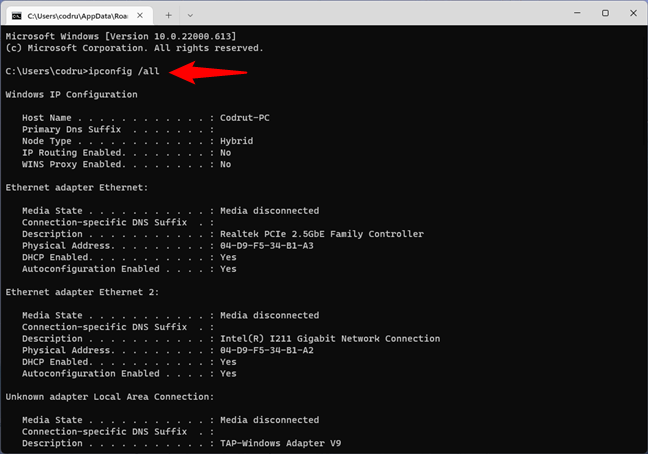
If you add the /all switch to the ipconfig command, you can get to a whole new level of detail: DNS information, the MAC (Media Access Control) (in the Physical Address field), and other information about each network component. Check out the picture below to see a sample of what you get from this command:
Getting CMD NIC info (information about the Network Interface Card) by running ipconfig
If you add the /all switch to the ipconfig command, you can get to a whole new level of detail: DNS information, the MAC (Media Access Control) (in the Physical Address field), and other information about each network component. Check out the picture below to see a sample of what you get from this command:
 Running ipconfig with the all parameter to get detailed NIC information
 Running ipconfig to identify the IP address of the router
The next step is to check that the network connection between the router and the computer is OK. To do that, it’s enough to run the ping command on the router’s IP address. In our example, that would mean that we have to run this command in CMD:
Running ipconfig to identify the IP address of the router
The next step is to check that the network connection between the router and the computer is OK. To do that, it’s enough to run the ping command on the router’s IP address. In our example, that would mean that we have to run this command in CMD:
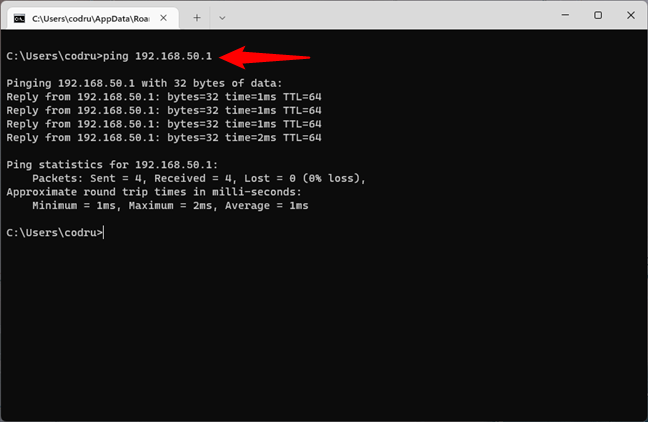 Pinging the router to check the network connection
If no packets are lost, the network connection tested is running well. Otherwise, there’s a problem somewhere between your computer and the router. You should check that your PC’s network adapter is configured correctly, the Ethernet cable is OK (if you’re using a wired connection) and that the router is configured correctly.
Pinging the router to check the network connection
If no packets are lost, the network connection tested is running well. Otherwise, there’s a problem somewhere between your computer and the router. You should check that your PC’s network adapter is configured correctly, the Ethernet cable is OK (if you’re using a wired connection) and that the router is configured correctly.
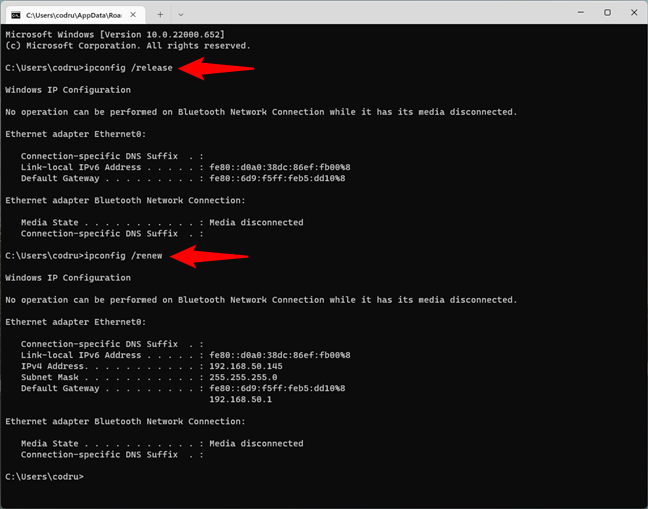
 Running ipconfig commands in CMD to reset the IP address
Note that you can also instruct CMD to run both commands in one line by typing:
Running ipconfig commands in CMD to reset the IP address
Note that you can also instruct CMD to run both commands in one line by typing:
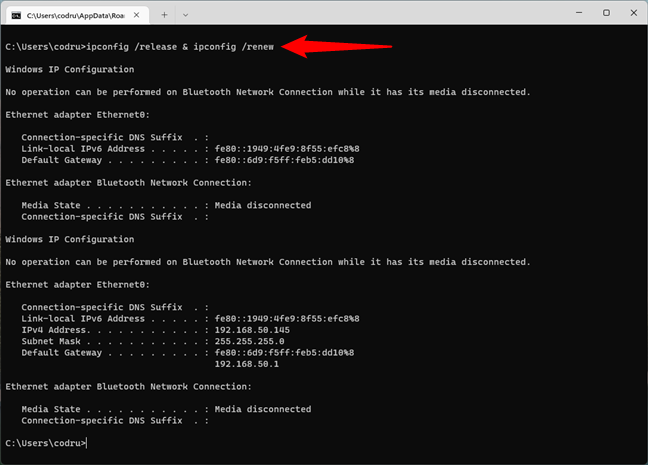
 How to reset IP in CMD in one line
The release and renew parameters are useful in networks that use DHCP (Dynamic Host Configuration Protocol) to distribute IP addresses automatically. Your system gives up its current address and requests a new one from the DHCP server, and that can help you troubleshoot certain network issues.
How to reset IP in CMD in one line
The release and renew parameters are useful in networks that use DHCP (Dynamic Host Configuration Protocol) to distribute IP addresses automatically. Your system gives up its current address and requests a new one from the DHCP server, and that can help you troubleshoot certain network issues.
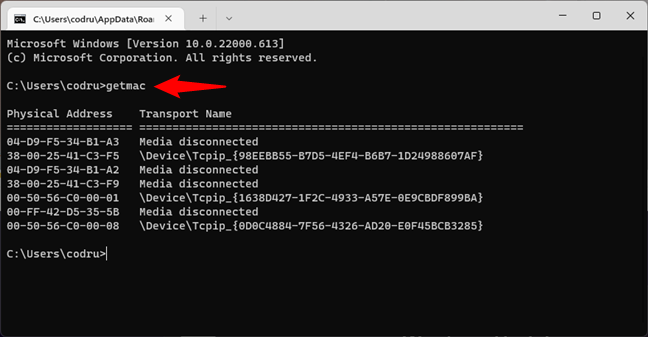
 Getmac displays the physical addresses of all the network adapters
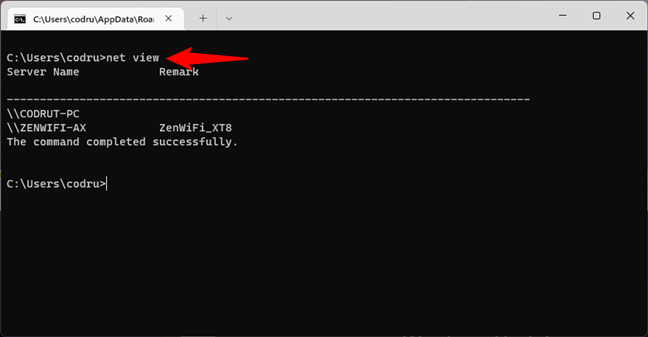 Net view can show the computers and devices connected to the same network
However, there’s a caveat about this command. Net view doesn’t show all the computers and devices in the same network as you. Although it works well enough for private networks, it fails to identify devices such as smartphones or printers and has issues with computers running different operating systems. If you want to get a clear view of everything connected to your network, you should also check the following command.
Net view can show the computers and devices connected to the same network
However, there’s a caveat about this command. Net view doesn’t show all the computers and devices in the same network as you. Although it works well enough for private networks, it fails to identify devices such as smartphones or printers and has issues with computers running different operating systems. If you want to get a clear view of everything connected to your network, you should also check the following command.
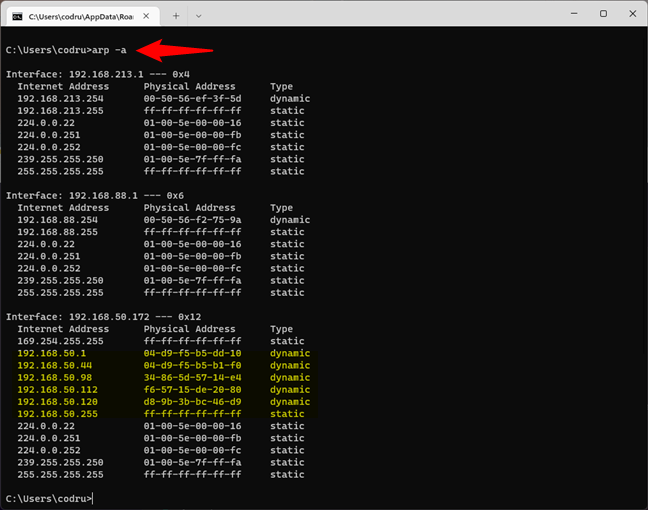
 Arp shows all the devices connected to the same network
The next ones are not real devices but IP addresses used for multicasting. Your real devices commonly use them for streaming media on your network. In our example, the devices connected to the same network as our computer are all the ones that have IP addresses starting with 192.168.50.
If you want to see what those devices are, in a more human-friendly way, copy their MAC addresses and look them up on the internet using Google or on websites that let you check which vendors assign specific MAC addresses, such as DNS Checker. For instance, if you’re looking for the MAC address 04-d9-f5-b5-b1-f0, you find that it’s a device made by ASUS. In truth, it’s an ASUS ZenWiFi mesh system.
Arp shows all the devices connected to the same network
The next ones are not real devices but IP addresses used for multicasting. Your real devices commonly use them for streaming media on your network. In our example, the devices connected to the same network as our computer are all the ones that have IP addresses starting with 192.168.50.
If you want to see what those devices are, in a more human-friendly way, copy their MAC addresses and look them up on the internet using Google or on websites that let you check which vendors assign specific MAC addresses, such as DNS Checker. For instance, if you’re looking for the MAC address 04-d9-f5-b5-b1-f0, you find that it’s a device made by ASUS. In truth, it’s an ASUS ZenWiFi mesh system.
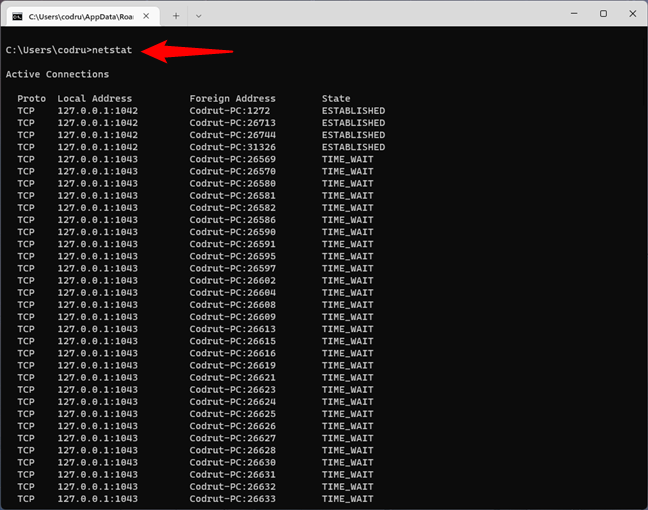 Netstat shows the active network connections and open ports
If you add the -a parameter to the netstat command, you can get the complete list of open ports, including idle ones (the ones marked as Listening), like in the image below.
Netstat shows the active network connections and open ports
If you add the -a parameter to the netstat command, you can get the complete list of open ports, including idle ones (the ones marked as Listening), like in the image below.
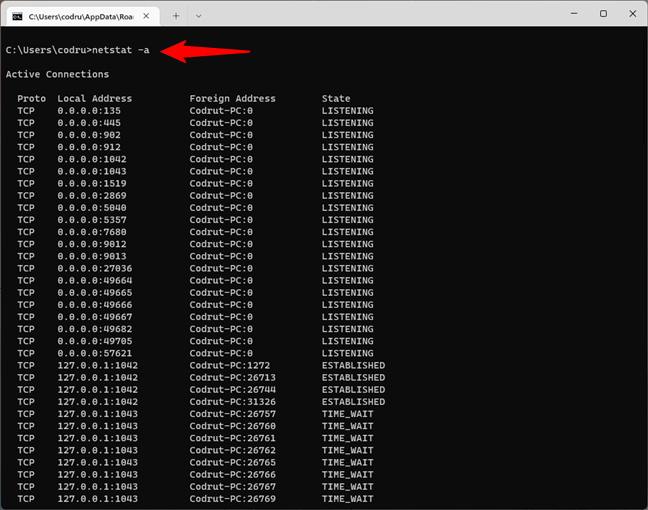 Netstat with the -a parameter shows the active network connections, including the ones in a listening state
 How to check the network traffic in Command Prompt
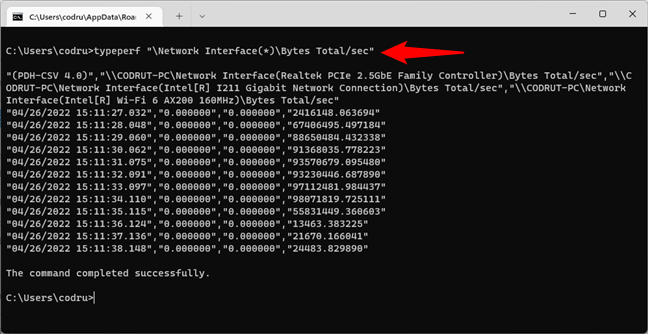
The typeperf command will then start to show the number of bytes sent and received each second, for all the network cards available on your Windows computer. The first line of the command’s output tells you the order in which the network interfaces are listed, while the next lines of text update each second with new measurements. Unfortunately, this command can’t show the network traffic in percentage.
TIP: The typeperf command can be used for gathering other types of network information too. Here are other useful variations of it with different counters you can monitor:
How to check the network traffic in Command Prompt
The typeperf command will then start to show the number of bytes sent and received each second, for all the network cards available on your Windows computer. The first line of the command’s output tells you the order in which the network interfaces are listed, while the next lines of text update each second with new measurements. Unfortunately, this command can’t show the network traffic in percentage.
TIP: The typeperf command can be used for gathering other types of network information too. Here are other useful variations of it with different counters you can monitor:
1. How to check the internet connection in CMD
To check whether your internet connection works, you can use Command Prompt to test the connection to a particular website or internet location. To do that, you can use the ping network command, followed by a web address or IP address. For instance, you can check the connectivity to Digital Citizen without opening a web browser by typing the command:ping www.digitalcitizen.life
Then press Enter on your keyboard.
ping -t www.digitalcitizen.life
CTRL + C
That makes CMD stop the endless cycle of ping commands to the specified address.
TIP: If you want to delve deeper into what the ping command is and what it does, we’ve covered it in detail here: What is the ping command? What is ping in apps and games? How to use ping in Windows?.
2. How to traceroute in CMD (tracert command) to troubleshoot network and internet problems
Tracert might be the best command to use in CMD if you want to check your network and internet connection. Why do we say that? Well, tracert is a command that works much like the ping command but provides you with additional information. While ping only tells you whether a network device, a website, or an internet resource is available, tracert also tells you the route taken by packets over the network/internet. For example, when loading a website in your web browser, the data packets aren’t transferred directly from its server to your computer. Instead, those packets follow a path via multiple servers before arriving on your PC. Tracing the route to it allows you to see which are those servers and identify where the line of communication breaks. To trace the route to a network or internet resource, run:tracert [website or network location or IP address]
Here’s what the tracert command looks like and what it outputs in CMD when we check the route of data packets to digitalcitizen.life from one of our computers:
tracert www.digitalcitizen.life
3. How can I see all the network adapters on my computer using CMD?
To obtain detailed information about your network adapters and connections, use the ipconfig command. Open Command Prompt, type:ipconfig
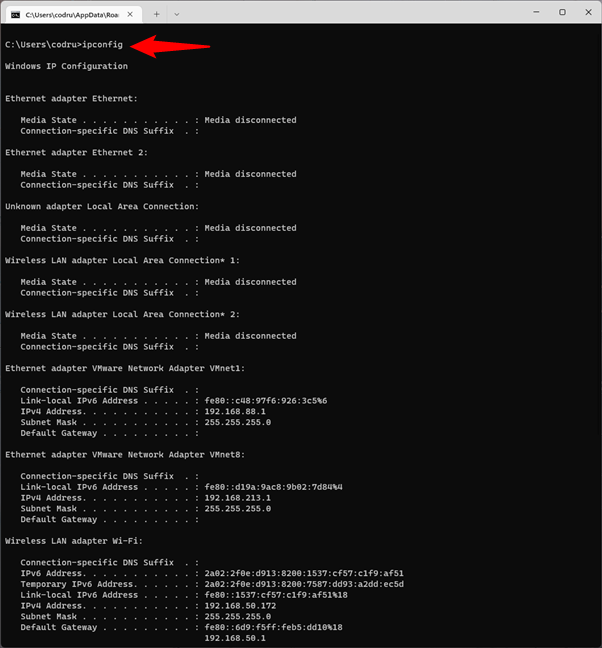
… and press Enter. As you can see in the screenshot below, when you run this command, Windows displays the list of active network devices, whether they’re connected or disconnected, and their IP addresses. You also get details such as their default gateway IP addresses, subnet masks, and the state of each network adapter.
ipconfig /all
4. How to check your network connection in CMD
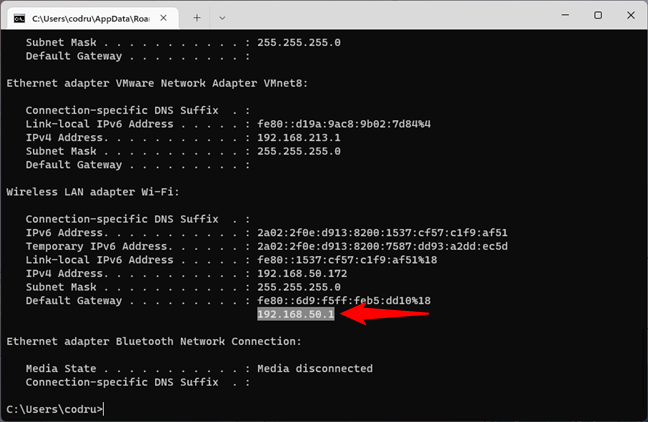
If you want to check whether your network connection to the router is operating as it should, you can use a combination of the commands ipconfig and ping. First, get some CMD NIC info about your adapter. In other words, open Command Prompt and run ipconfig. In the results list, identify the network adapter used for connecting to the network you want to test. Then, in its details, find your router's IP address and note it down. For example, if we’d want to check our Ethernet network connection, we’d run ipconfig and see that our router’s IP address is 192.168.50.1.ping 192.168.50.1
5. How to renew the IP address of your network adapter
When your network connection doesn’t work as it should, your network adapter might not have the correct IP address assigned. A quick way of solving this issue is to renew its IP address, and, fortunately, you can do that quickly, straight from the Command Prompt. Open CMD and run the following commands:ipconfig /release
ipconfig /renew
The first one - ipconfig /release - forces your network adapter to drop its assigned IP address, while the second command - ipconfig /renew - renews the network adapter’s IP address.
ipconfig /release & ipconfig /renew
If you type them like this, Command Prompt executes the first command, and when it’s done, it automatically runs the second one. Cool, right? 🙂
6. How to get NIC info about your network adapter's MAC addresses
One of the fastest and easiest ways to obtain the MAC addresses of your network adapters is to use the getmac command. In Command Prompt, typegetmac
… and press Enter, as seen in the image below.
7. How can I see the computers and devices connected to my network using CMD?
In some cases, you might want to see what computers and devices are connected to the same network as you are. One of the easy and friendly ways to do that is to use the net view command. Launch Command Prompt and runnet view
After a while, you should see a list of the computers and devices in your network.
8. How to list all the devices on the network using CMD?
The best way to list all IP addresses on the network in CMD is to use the arp command. Open Command Prompt and run:arp -a
The IP address shown first, next to Interface, displays your network adapter’s IP address. Then, there’s a list of IP addresses and MAC addresses (Physical Addresses). All the IP addresses that start with the same numbers as your network adapter are in the same network or subnet as you are. They are all devices connected to your network.
9. How to check your computer’s network connections and open ports
You can get other helpful CMD NIC info from this command:netstat
It lets you see the network connections between your system and any other systems on your network or the internet, except for those in a Listening state.
10. How to check the network traffic in Windows’ command line
Windows allows you to see the network traffic easily in the Task Manager. However, that’s a visual tool, and some users might want to get network utilization from the command line. Fortunately, there’s a command for that too. It’s called typeperf and lets you check the network traffic from CMD, although not in a friendly manner. Here’s the full command with arguments that you must run in Command Prompt:typeperf “\Network Interface(*)\Bytes Total/sec”
typeperf “\Network Interface(*)\Current Bandwidth
typeperf “\Network Interface(*)\Bytes Received/sec
typeperf “\Network Interface(*)\Bytes Sent/sec
typeperf “\Network Interface(*)\Packets/sec
typeperf “\Network Interface(*)\Packets Received/sec
typeperf “\Network Interface(*)\Packets Sent/sec
As you can see, the names of the counters are self-explanatory, monitoring bandwidth, as well as bytes and packages sent and received on your PC. Have fun playing with them!
NOTE: If you want to learn more about this command, check the official documentation from Microsoft: typeperf - Microsoft Docs.
Discussion (32)
Very insightful
Please include powershell commands to troubleshoot wifi and network issues.
Hi, I have ADT camera’s running on wifi. I have a concern that my neighbor has found a way to hack into the camera’s control system. I have experienced a few camera issues (ex. not picking up certain motion when people come out, as if the clips are being externally controlled from an outside source). I have tried changing my routers username, password, disabling the SSID broadcast, etc. However, it doesn’t seem to help. Is it possible that I can view CMD or use a certain software to determine if in fact my wifi/cameras have been hacked into?
Change your Wi-Fi password, reset your cameras and reconfigure them with a different access password. It should do the trick.
netstat -b -o -a -r -n
This gives you the jason bourne identity.
Very helpful
Another way to get network info using powershell:
-> get-netadapter | select * (tells everything about the adapter)
-> get-netadapterstatistics (network stats)
-> get-netipaddress (gain ip address of network adapter)
-> get-netipconfiguration (same as ipconfig)
Todd
Thanks for sharing this information.
can we connect notwork computers through cmd command. please mentioned the necessary command/code for that.
Thanks!
How can i access devices like UPSs and Rectifiers on network. Off course with IP addresses
When i do the “net view” command I get “the servers for this workgroup is not currently available”. Is there a way to force it to show me what devices are connected to my network?
In CMD prompt, type—–> netstat press enter
It is very helpful for me as a beginner
dear sir i want know about which is shown in a netstat command
When I am in Skype meeting repetitively i am getting disconnected from Screen sharing and Presentation as well though I have good network connection having Speed of 98 Mbps of download Speed and 24 Mbps of Upload Speed. So, need to know is there any other parameter which can be causing this issue. Also please suggest me how can i resolve my issue.
Code is our knowledge. I mean cmd codes are the degree of our knowledge about the computer and its devices…
My wi fi westell -750 router is connecting to internet but nit conneclng to my android mobile.
From my mobile seyttngs when I enter the passwword wi fi shows as connected. but I find the mobile is not connected to internet. please guide.
i wanna name book for learning net command on cmd “dos ” please
How can use Cmd To Locate another PC or network
hello thank you very the very great article i have read it and its very helpful .
just two questions i want my smartphone to get access to my WIFI network which it had initially been locked out.secondly i eager to be receiving ayour tutorials as soon as possible.
Thank you very much for the very good job.
First of all thank, can you tell me why my computer cannot use command 1, “connection” 2, “cd aircrack-ng”. my computer is window 7.
Pls sent me a reply.
the commands are useful for a beginar but are common for a regular user ore a expert
Thanks a lot for reminding all of that
awsm commands
I am not getting any connection in cmd. so please share me about this.
normal commands that is widely available in website..why don’t give some powerful commands which can do lots of changes in a computer
Nice.& Thans
Good tutors, netstat actually helped me to find the radio stream that I wanted badly which web browsers failed to reveal!!
i love the page. thank you very much. can you please send me tutorials from time to time?
i love computers and want to know as much about them as possible.
especially programming, networking and securities.
Subscribe to our email newsletter, using this link: https://eepurl.com/f9Sqn
And you will receive an email every week with out tutorials and articles.
if there are some other commands means send it to my mail id pls thank you
thnx it was very usefull
Thanks alot